> For the complete documentation index, see [llms.txt](https://developers.citrusad.com/llms.txt). Markdown versions of documentation pages are available by appending `.md` to page URLs; this page is available as [Markdown](https://developers.citrusad.com/partner/reference/bannerxcampaign-1.md).
# Banner X campaign
{% hint style="info" %}
Epsilon Retail Media's documentation is now centralized with our knowledgebase!
For up to date guides, please view [this page](https://help.citrusad.com/retail-media-interface/partner/campaign-management-api/bannerxcampaign-1) in the new Partner APIs space of our documentation.
{% endhint %}
Banner X offers responsive, multi-component banner ads that enhance the online shopping experience by seamlessly integrating into retailers' websites. Epsilon Retail Media provides the components, while the retailer's frontend manages the styling to ensure consistency with the site's eCommerce design. This approach helps maintain brand integrity while effectively engaging customers.
## Key benefits
* **Native integration**: Ads fit naturally within product carousels, maintaining the site's style.
* **Personalization**: Deliver ads personalized in real-time, tailored to user interests.
* **Enhanced engagement**: Improve product visibility, drive customer engagement, and boost sales with compelling CTAs.
## Banner X components
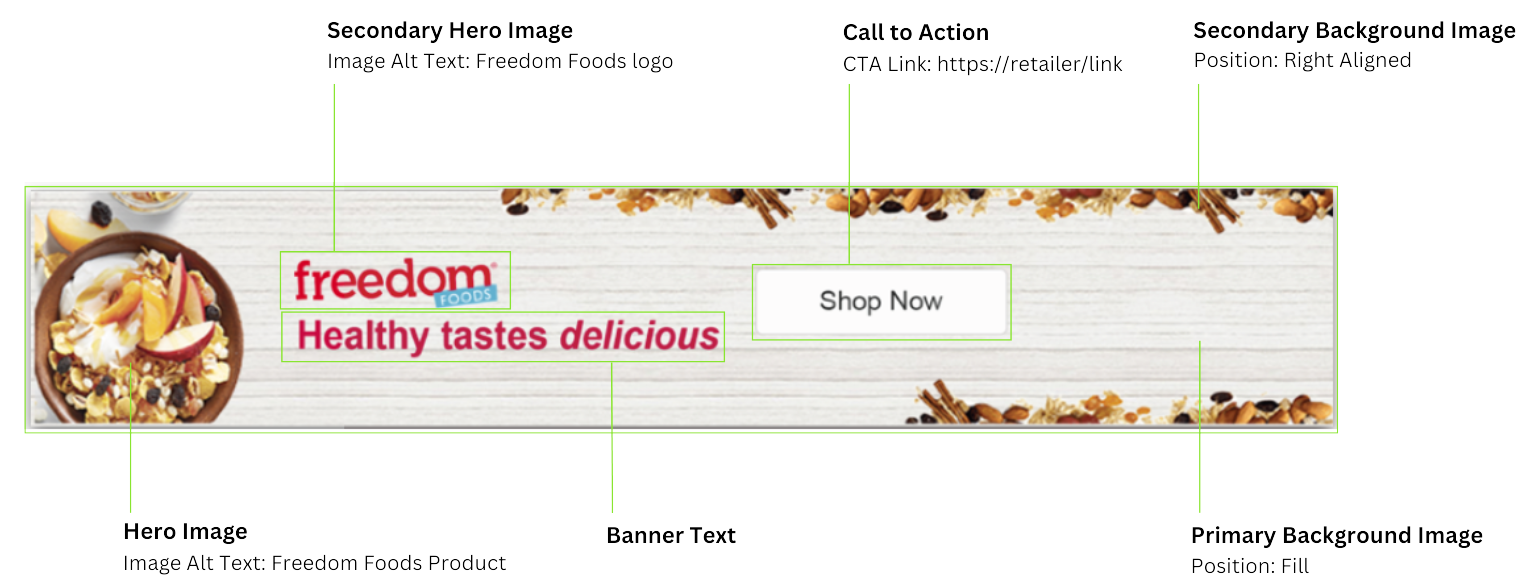
Understand the components of banner X to ensure your design complies with retailer standards. Each component is essential for maintaining visual consistency and functionality.
### Primary background image
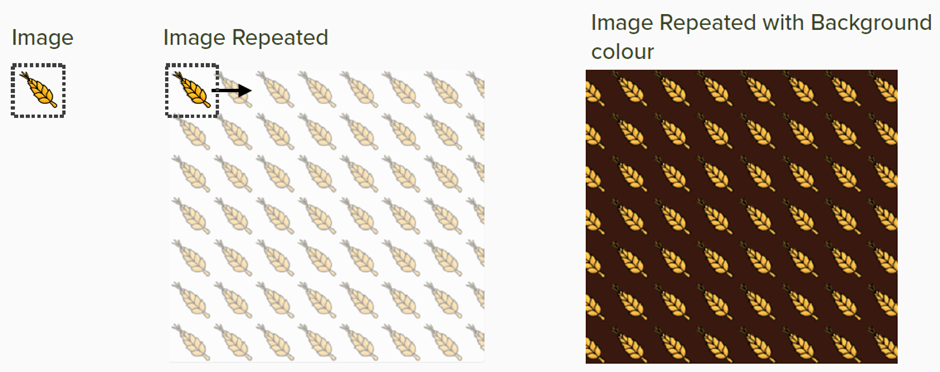
The primary background is a simple backdrop that ensures design clarity and consistency across devices. Avoid embedding product images or overpowering content to prevent cropping issues, especially on different devices and browser widths. The six available primary background configurations are:
* Repeating
* Fill
* Top aligned
* Bottom aligned
* Right aligned
* Left aligned
### Secondary background image
Use the secondary background image for added decoration on your banner. The six available secondary banner configurations are:
* Repeating
* Fill
* Top aligned
* Bottom aligned
* Right aligned
* Left aligned
### Banner text
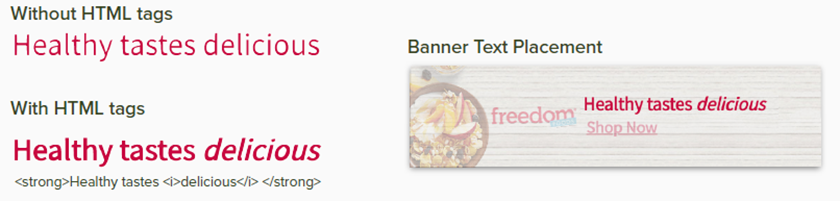
Banner text is the text displayed on your banner ad, supporting limited HTML tags like `strong` for bold and `i` for italic. You can also customize the text color. For example,
### Hero image
Hero image is the main promotional image, typically used to display your product or logo. The two available configurations for hero image are:
* Landscape
* Portrait
### Secondary hero image
Use the secondary hero image to display your product or logo. The two available configurations are:
* Landscape
* Block (an image with same width and height)
### Call-to-action
A call-to-action (CTA) is a clickable text or button prompting users to act, like making a purchase or visiting another page. CTAs should be clear, action-oriented, and visually prominent to boost engagement. For example, "Shop Now" encourages purchases.
## Ad placement types
Banner X supports various strategic [ad placements](https://developers.citrusad.com/integration/docs/introduction-to-placement-types) on retail websites, including:
* **Search**: Display ads when customers enter configured search terms, such as chocolate, in your campaign. For more information, see [Search placements](https://developers.citrusad.com/integration/docs/introduction-to-placement-types#search).
* **Category**: Display ads on category pages related to your product. Target specific categories by providing relevant taxonomy details, such as `Category:Cupboard/Snacks`. For more information, see [Category placements](https://developers.citrusad.com/integration/docs/introduction-to-placement-types#category).
* **Category and search**: Display ads when customers visit a category page related to your products or use configured search terms in your campaign.
* **Category cross-sell**: Category cross-sell placements let advertisers target complementary categories in addition to their products' default categories. This approach enhances visibility for products in related categories, such as showcasing coffee products in the dairy section of a retailer's site. For more information, see [cross-sell placements](/integration/reference/difference-between-category-and-category-cross-sell-placements.md).
* **Broad match**: Show ads on high-traffic pages not linked to specific categories or search terms. Ideal for general locations like homepages or checkout pages. For more information, see [Broad match placements](/integration/reference/requesting-banner-x-ads.md#broad-match-placements).
## Supported ad slot formats
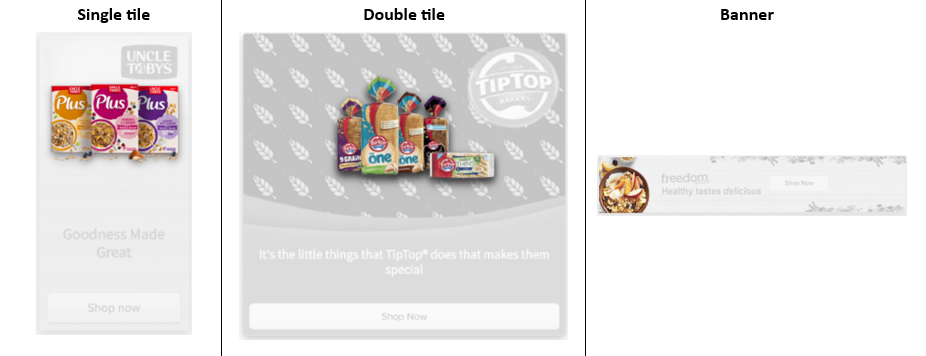
Banner X can be deployed in the following formats:
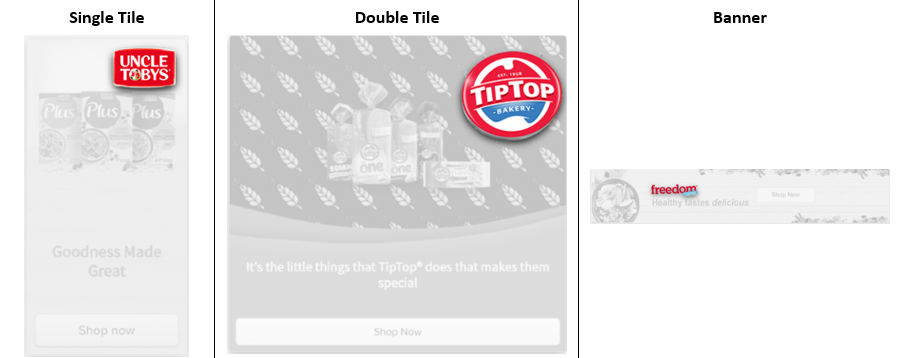
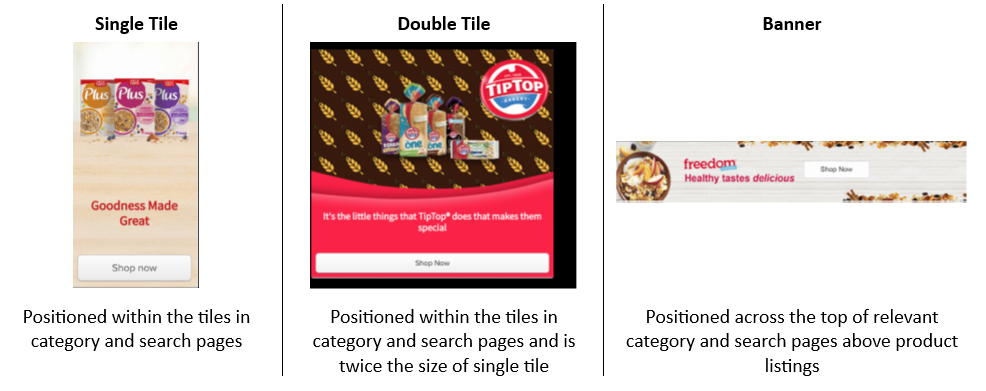
* Single tile
* Double tile
* Full banner
## Implement banner X ads
To set up banner X ads, follow these steps:
### Step 1: Review the retailer's content standards
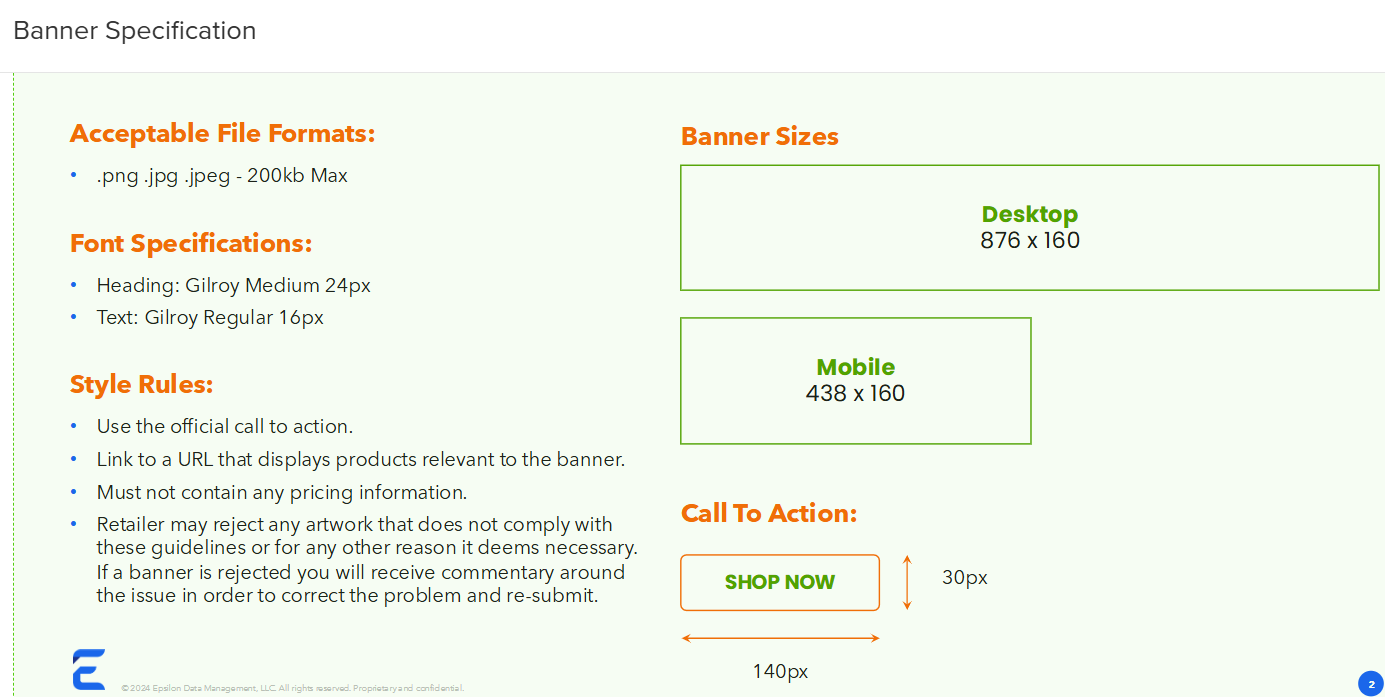
Content standards are guidelines and technical parameters that dictate how a Banner X ad should be displayed within a designated space on a website or digital platform. These standards may include:
* **Dimensions and size**: Specifications on the exact width and height of the banner.
* **File format**: Accepted image or video file formats, such as JPEG, JPG, PNG, SVG, or GIF.
* **File size limit**: Maximum allowable file size to ensure quick loading times and optimal performance on the webpage.
* **Resolution and quality**: Minimum resolution requirements to ensure the banner looks crisp and professional.
* **Positioning and alignment**: Guidelines on how the banner should be aligned within the available space.
* **Content restrictions**: Rules on what content can or cannot be included within the banner (e.g., no offensive content, inclusion of mandatory legal disclaimers).
* **Interactivity**: Specifications for interactive elements, such as clickable areas, animations, or user-triggered events, if applicable.
Familiarize yourself with the retailer’s content standards guidelines to start your campaign. These guidelines include example URLs, page positioning, and specific artwork content restrictions. Consult your Customer Integration Engineer (CIE) for detailed information about available banner X slots and their specifications. Here is an example:
### Step 2: Prepare creative assets
Develop your creative assets according to the retailer's content standards. This includes elements such as the primary background, secondary background, hero image, and secondary hero image. Use the [Get Banner X content standard details](/partner/reference/getbannerxcontentstandard-1.md) API to retrieve the details of the content standard.
### Step 3: Identify the ad slot format
Determine the ad slot format for your deployment, which could be a full banner, single tile, or double tile.
### Step 4: Upload the creative assets
After creating your creative assets and identifying the ad slot format, upload them using the [Upload the creative asset](/partner/reference/uploadfile-1.md) API. The API returns the file ID and URL of the image uploaded.
* **File IDs**: The file IDs are required when creating a banner X campaign. You must provide a specific file ID for each asset type, such as the primary background, secondary background, hero image, and secondary hero image.
* **URL**: The URL is primarily used to preview the uploaded image.
### (Optional) Step 5: Retrieve the public URL of the image
Use the [retrieve file URL API](/partner/reference/getcampaignfileurl.md) to obtain the public URL of the image. You can use this URL to verify or share the image with stakeholders.
### Step 6: Create a banner X campaign
Create a banner X campaign using the [Create a banner X campaign](/partner/reference/createbannerxcampaign-1.md) API. Ensure you have the `backgroundImageId`, `secondaryBackgroundImageId`, `heroImageId`, and `secondaryHeroImageId`which are the file IDs returned by the [Upload the creative asset](/partner/reference/uploadfile-1.md) API.